

In the world of graphic design, Canva has established itself as a go-to platform for creating stunning visuals. Whether you are designing for social media, marketing, or personal projects, Canva’s user-friendly interface and vast template library make it a popular choice for many. However, there are numerous free Canva alternatives that offer similar features, or even better functionality, depending on your specific needs. If you’re looking for free alternatives to Canva, this list will help you find the best options to suit your design needs.
Why Canva is Popular?
Canva has gained a massive following due to its intuitive drag-and-drop interface, rich library of templates, and integration with various media types. It offers both free and premium plans, but many users prefer to find a free Canva alternative that provides similar functionality without the need for a subscription. If you’re exploring programs like Canva or searching for a website like Canva that doesn’t come with a price tag, the following tools will be a great fit. Let’s dive into the top 13 free alternatives to Canva.
13 Best Free Canva Alternatives
Here’s a list of the top 13 free AI Canva alternatives to help you create beautiful designs:
- Adobe Express
- Vectr
- Fotor
- DesignBold (Designs.ai)
- BeFunky
- Pixlr
- Snappa
- Placeit by VistaCreate
- Gravit Designer
- Photopea
- InVideo AI
- Krita
- Vectr8 (formerly DeepAI)
Free Canva Alternatives Comparison Table
| Tool | Best For | Features | Free Plan Available | Collaborative Features | AI-Powered | Templates | Stock Images | Pricing |
|---|---|---|---|---|---|---|---|---|
| Adobe Express | Quick design for social media and videos | Stock photos, templates, video editing, cloud integration | Yes | Yes | No | Yes | Yes | Free (with paid upgrades) |
| Vectr | Vector graphics and collaboration | Real-time collaboration, cross-platform support | Yes | Yes | No | Limited | Limited | Free |
| Fotor | Photo editing and social media design | Photo enhancement, collage maker, templates | Yes | No | No | Yes | Yes | Free (with premium features) |
| DesignBold (Designs.ai) | Marketing and social media visuals | AI-powered design tools, customizable templates | Yes | Yes | Yes | Yes | Yes | Free (with paid upgrades) |
| BeFunky | All-in-one design, photo editing, collage | Photo editing, collage maker, templates | Yes | No | No | Yes | Limited | Free (with premium features) |
| Pixlr | Quick photo edits and manipulation | AI-powered editing, stickers, filters, retouching tools | Yes | No | Yes | Yes | Yes | Free (with premium features) |
| Snappa | Social media graphics and marketing | Templates, stock photo integration, social media export | Yes | No | No | Yes | Yes | Free (with limited downloads) |
| Placeit by VistaCreate | Mockups and video creation | Mockups, videos, ads, logos, templates | Yes | Yes | Yes | Yes | Yes | Free (with premium options) |
| Gravit Designer | Vector graphics and web design | Advanced vector editing, cross-platform support | Yes | Yes | No | Limited | Limited | Free (with paid options) |
| Photopea | Advanced photo editing and web design | PSD support, raster and vector tools | Yes | No | No | Yes | Yes | Free (with ads) |
| InVideo AI | Video content creation and editing | AI-powered video generation, customizable templates | Yes | No | Yes | Yes | Yes | Free (with watermark) |
| Krita | Digital painting and illustration | Brushes, drawing tools, animation tools | Yes | No | No | Limited | No | Free |
| Vectr8 (formerly DeepAI) | AI-powered design automation | AI-assisted design suggestions, fast layout generation | Yes | Yes | Yes | Limited | Limited | Free (with paid plans) |
13 Free Canva Alternatives Reviews
1. Desygner
Review:
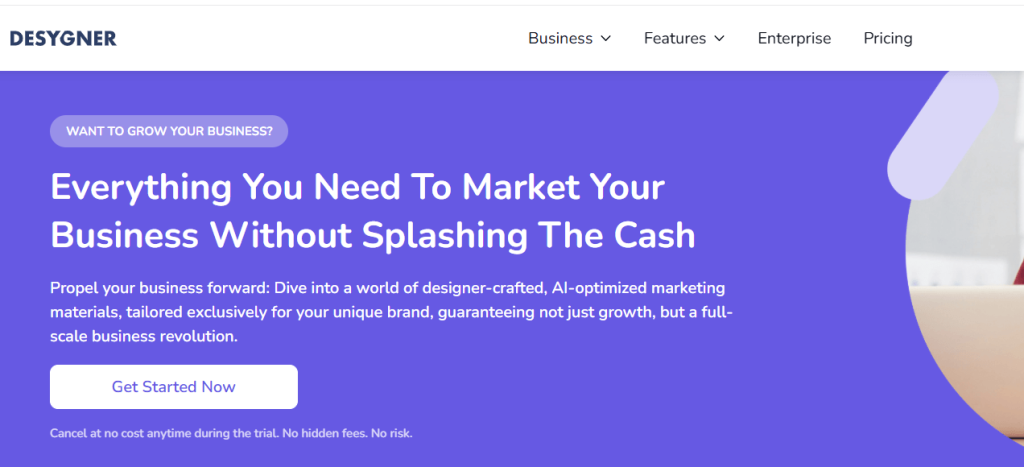
Desygner is a browser-based graphic design tool built as a straightforward alternative to Canva. It focuses on ease of use, with drag-and-drop editing, a large template library, and handy brand tools. It’s great for non-designers who need to quickly create social posts, ads, presentations, and simple print designs without complex software.
Best for:
Small businesses, marketers, and non-designers who want quick branded graphics across web and print.
Features:
-
Drag-and-drop editor for web and mobile
-
Templates for social media, presentations, marketing materials, and documents
-
Brand kits (logos, fonts, colors) and asset management
-
PDF editing and resizing tools
-
Collaboration and shared projects
Pros:
-
Very easy to learn, even for beginners
-
Strong focus on brand consistency and reusable templates
-
Works entirely in the browser and on mobile apps
Cons:
-
Less advanced than pro design suites for complex layouts
-
Some of the better templates and brand tools require a paid plan
Pricing:
Free plan available with basic templates and features; paid plans typically start around $4–$5 per user/month when billed annually, with higher tiers (Business/Enterprise) offering more brand and collaboration features.
2. Vectr
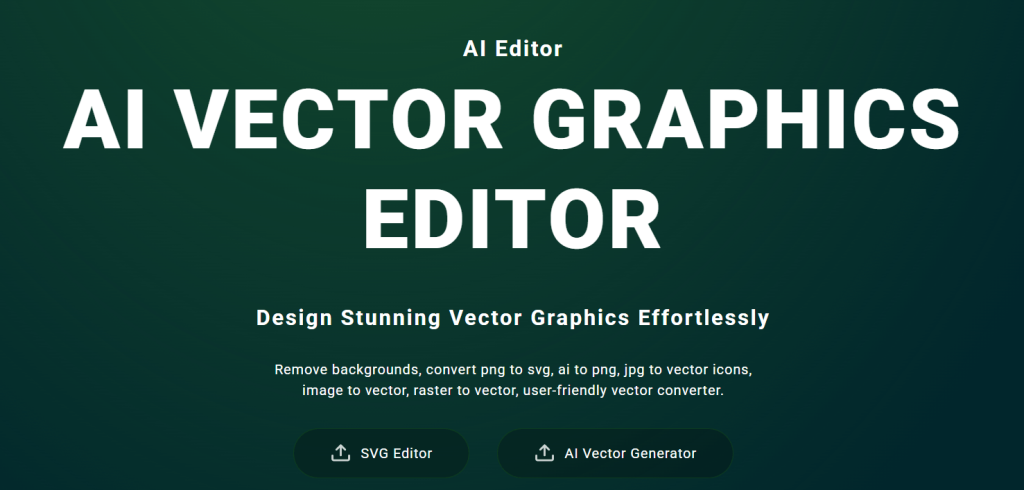
Review: Vectr is a vector graphic design tool that’s as simple as it is powerful. It’s perfect for creating logos, illustrations, and web graphics. Vectr’s real-time collaboration feature sets it apart, allowing teams to work together on designs seamlessly. While it doesn’t have the vast library that Canva offers, Vectr provides flexibility and precision for those who need a more technical design platform.
Best for: Vector graphic design and collaboration.
Features:
- Real-time collaboration
- Cross-platform support (Web, Desktop, and Chrome Extension)
- Basic shape tools and advanced vector tools
Pros:
- Simple and intuitive interface
- Great for creating scalable graphics
- Completely free
Cons:
- Limited templates and stock images
- Fewer features compared to competitors
Pricing: Free to use with an optional paid version for more advanced tools.
3. Tyle.io
Review:
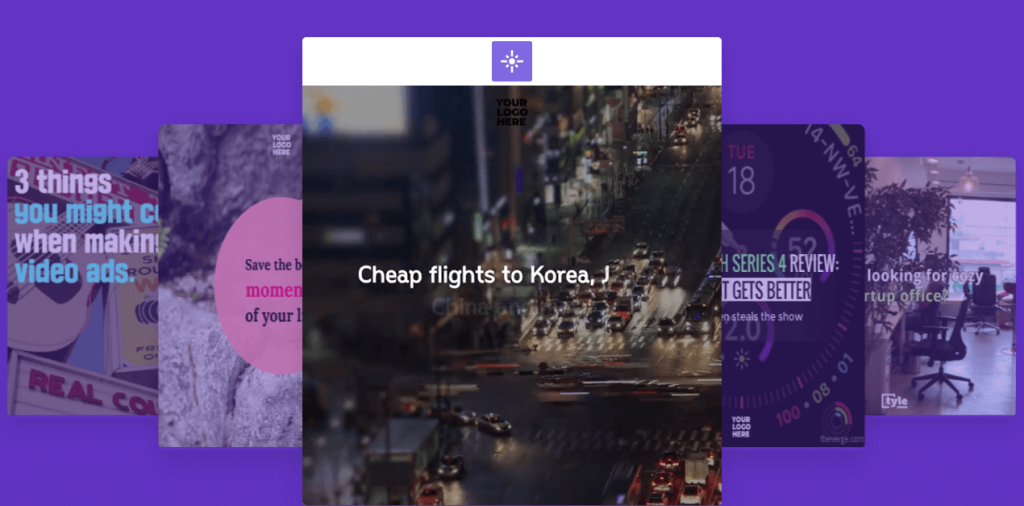
Tyle.io is a content creation tool focused on automated video and social media design. You feed it text, images, or URLs, and it auto-generates video and graphic layouts that you can tweak. It’s aimed at marketers who want fast, on-brand content without doing everything manually on a timeline.
Best for:
Marketers and small teams wanting quick, automated video and social content from scripts, blog posts, or product info.
Features:
-
AI-driven layout and video creation from text or URLs
-
Templates for social videos, ads, and posts
-
Automatic resizing for different social platforms
-
Basic editing controls for text, timing, and media
Pros:
-
Very fast way to turn content into videos/posts
-
Great for repurposing blog posts into short videos
-
No heavy video-editing knowledge needed
Cons:
-
Less granular control than traditional video editors
-
Library and design flexibility are more limited than Canva/Kittl
Pricing:
Usually offers a free or trial option with export limits; paid plans typically start around $20–$30/month, with higher tiers adding higher export limits and better asset libraries. Check Tyle.io’s pricing page for the latest.
4. Kittl
Review:
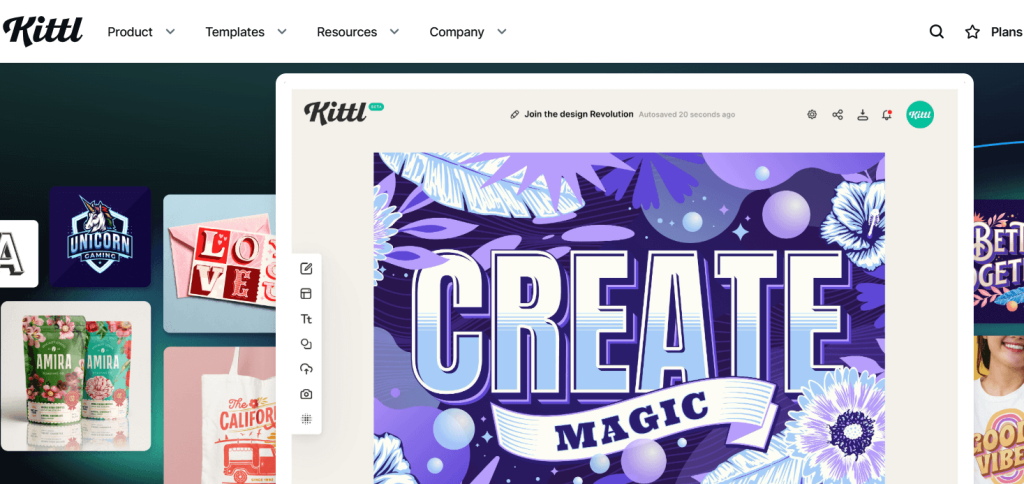
Kittl is a design platform heavily geared toward illustrative and typographic work—think t-shirts, posters, logos, and vintage-style graphics. It feels like a mix of Canva’s ease and pro-level vector/typography tools, making it ideal for merch designers and creatives.
Best for:
T-shirt/merch designers, illustrators, and branding projects where typography and illustration matter.
Features:
-
Advanced text effects, badges, and lettering tools
-
Huge library of editable templates and illustrations
-
Vector-based artwork and logo creation
-
Built-in mockups for apparel and print products
Pros:
-
Fantastic for vintage, badge, and illustrative designs
-
Templates look more “designer made” than many generic tools
-
Browser-based, no heavy software needed
Cons:
-
Less suited to multi-page documents (presentations, long-form layouts)
-
Some advanced features and assets require higher-tier plans
Pricing:
Free plan available with limited templates and exports; paid plans typically start around $15/month when billed annually, with higher tiers unlocking commercial usage and larger asset libraries.
5. Animaker
Review:
Animaker is an online animation and video maker focused on explainer videos, social clips, and animated presentations. It gives you drag-and-drop scenes, characters, and motion graphics so you can build animated videos without traditional animation skills.
Best for:
Explainer videos, animated social media content, and simple marketing videos.
Features:
-
Drag-and-drop animated video builder
-
Pre-made characters, scenes, and motion templates
-
Text-to-speech and lip-sync options
-
Direct export to social platforms and video download
Pros:
-
Great for non-technical users who want animation
-
Rich library of characters and scenes
-
Ideal for marketing and education content
Cons:
-
Heavy projects can feel slow in the browser
-
Watermarks and export limitations on the free plan
Pricing:
Free plan with export and watermark limitations; paid plans typically start around $10–$20/month (billed annually) with higher tiers for HD export, longer videos, and brand assets.
6. PixTeller
Review:
PixTeller is a web-based design tool for graphics, GIFs, and simple animations. It’s geared toward small businesses and social media managers who need quick visuals without juggling multiple apps. It has both static graphic templates and frame-by-frame animation tools.
Best for:
Social media posts, banners, and lightweight animated graphics (GIFs, short loops).
Features:
-
Templates for social posts, banners, and posters
-
Frame-based animation editor for GIFs and short videos
-
Text, shape, and image editing tools
-
Built-in templates and stock-like assets
Pros:
-
All-in-one for static + simple animated content
-
Easy to learn and browser-based
-
Good variety of ready-made designs
Cons:
-
Not as polished or extensive as Canva’s library
-
Animation tools are simpler than dedicated motion apps
Pricing:
Free plan with limited templates and exports; paid plans generally start around $7–$10/month, with higher tiers offering more templates, exports, and branding options.
7. Snappa
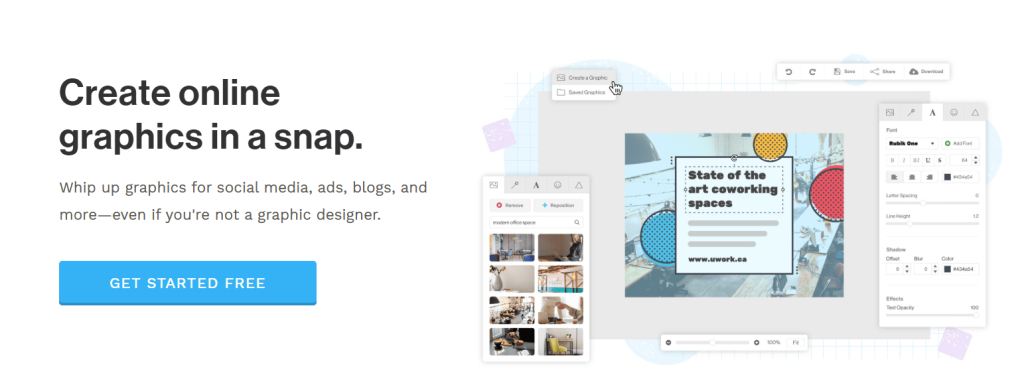
Review: Snappa is a straightforward design tool that competes with Canva. It’s designed for marketers, bloggers, and small businesses. With its simple interface and drag-and-drop functionality, Snappa makes it easy to create social media posts, ads, blog graphics, and more. It’s a great option for users who want quick and efficient designs.
Best for: Social media graphics and marketing content.
Features:
- Ready-made templates
- Stock photo integration
- Social media export options
Pros:
- Fast and easy to use
- Large library of free stock photos
- Simple and clean interface
Cons:
- Limited template customization on the free plan
- Free plan has a restricted number of downloads
Pricing: Free with a paid version for more advanced features.
8. Placeit by VistaCreate
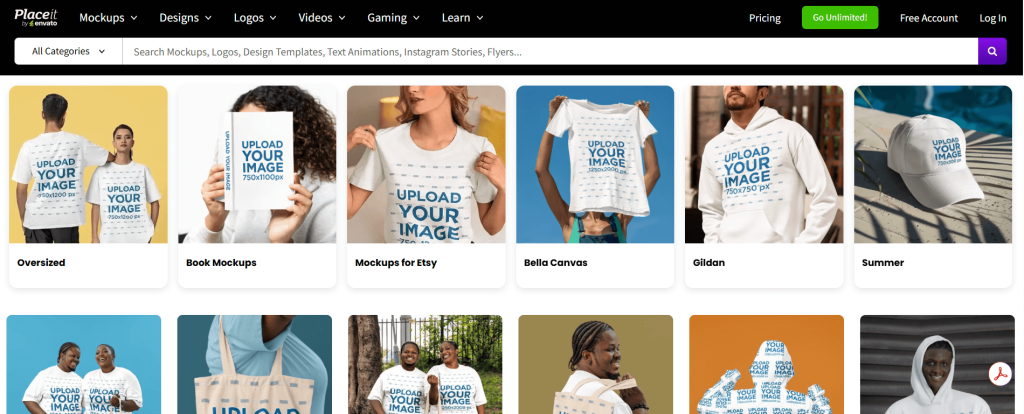
Review: Placeit by VistaCreate offers a platform that’s perfect for those who need high-quality mockups and video templates. It’s great for people in the fashion, sports, and tech industries. Placeit allows you to create realistic mockups, social media posts, and videos without any design experience.
Best for: Mockups and video creation.
Features:
- Extensive library of mockups
- Video editing tools
- Customizable templates for ads and logos
Pros:
- Huge library of templates and mockups
- Simple interface
- High-quality results in a short amount of time
Cons:
- Limited free assets
- Some features require a premium account
Pricing: Free with optional premium features.
9. Dribbble
Review:
Dribbble is primarily a designer community and portfolio platform, not a template editor like Canva, but it’s a powerful alternative if you want top-tier design resources and inspiration. You can browse UI kits, branding systems, and templates shared (and sometimes sold) by professional designers, or hire designers directly.
Best for:
Finding high-quality design assets, UI kits, and professional designers rather than DIY templating.
Features:
-
Designer portfolios and showcase shots
-
Downloadable resources (UI kits, icons, templates) from creators
-
Job board and hiring tools for design talent
-
Community feedback and inspiration feeds
Pros:
-
Access to very high-quality, professional design work
-
Great for inspiration and hiring designers
-
Some free resources and files available
Cons:
-
Not a drag-and-drop editor—more of a marketplace/community
-
Many best assets are paid products from individual designers
Pricing:
Browsing and posting basic work is free; Dribbble Pro (for advanced portfolio features, jobs, and more visibility) typically starts around $8–$15/month depending on billing.
10. Photopea
Review:
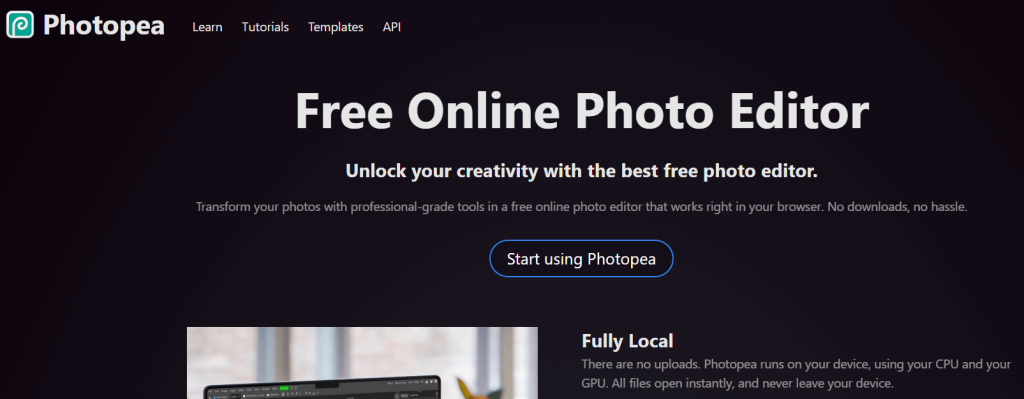
Photopea is a browser-based editor that feels very similar to Photoshop, including support for PSD, AI, and Sketch files. It’s excellent when you need layer-based control, masking, and more advanced editing than Canva can offer, but without installing heavyweight desktop software.
Best for:
Advanced photo editing, layered graphics, and working with PSD/Photoshop-style files directly in the browser.
Features:
-
Support for PSD, XCF, Sketch, XD, and other formats
-
Layered editing, masks, filters, and blending modes
-
Vector and text tools
-
Runs fully in the browser, no install required
Pros:
-
Incredibly powerful for a free browser tool
-
Great for users familiar with Photoshop’s interface
-
Handles complex, layered files that Canva struggles with
Cons:
-
Interface can be intimidating for beginners
-
Free version shows ads; heavy use benefits from premium
Pricing:
Core usage is free (ad-supported); Premium (no ads and extra convenience features) is typically around $3–$5/month.
11. InVideo AI
Review: InVideo AI is an advanced video creation tool that incorporates AI for streamlined video design. It allows users to generate professional-quality videos for marketing, social media, and other purposes. With templates tailored for different industries, it’s a great choice for video creators.
Best for: Video content creation and editing.
Features:
- AI-powered video generation
- A vast collection of templates and video assets
- Simple editing tools for customization
Pros:
- Fast video creation
- Great AI tools for automated video editing
- Easy to use with minimal effort
Cons:
- Limited export quality in the free plan
- Watermark on videos in free version
Pricing: Free with premium features available.
12. Krita
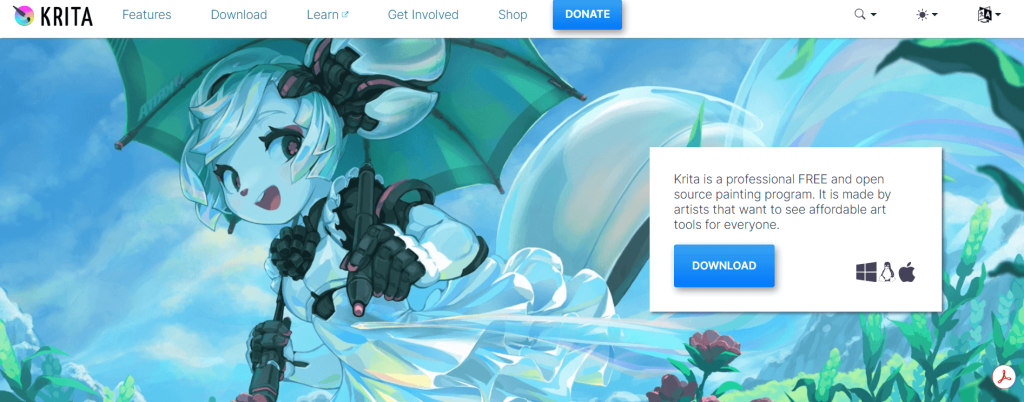 Review: Krita is a free, open-source painting program designed for digital artists. It’s perfect for illustrators and digital painters who need advanced features and tools that rival paid software like Adobe Photoshop. Best for: Digital painting and illustration. Features:
- Brushes and drawing tools
- Animation tools
- Open-source and free to use
Pros:
- Great for digital artists and illustrators
- Highly customizable
- No cost to use
Cons:
- Steep learning curve for beginners
- Not designed for graphic design or photo editing
Pricing: Completely free.
13. Vectr8 (formerly DeepAI)
 Review: Vectr8 is an AI-powered design platform that uses machine learning to enhance and automate the design process. It offers an easy-to-use interface with features that allow for faster production of visual content. Best for: Quick design generation using AI. Features:
- AI-powered design suggestions
- Fast layout generation
- Cloud-based interface for easy sharing
Pros:
- AI-assisted design
- Intuitive layout tools
- Easy collaboration
Cons:
- AI suggestions can sometimes be generic
- Limited customization options
Pricing: Free, with paid plans available for advanced features.
How to Choose the Best Canva Alternative
When selecting the best free Canva alternative, consider these factors:
- Ease of Use: Some platforms are more beginner-friendly than others. Look for tools with drag-and-drop functionality and a simple interface.
- Templates: Consider the variety and quality of templates available. If you need a wide range of design options, make sure your chosen tool has that.
- Features: Ensure the platform has the design tools you need, whether that’s photo editing, vector graphics, or video creation.
- Collaboration: If you work with a team, find a tool that supports real-time collaboration.
- Pricing: Many alternatives are free but have premium features behind a paywall. Check the features available on the free plan to ensure they suit your needs.
Conclusion
Finding the right free Canva alternative can take some trial and error, but there are plenty of great options to explore. From photo editing tools like Pixlr and Fotor to full-fledged design software like Gravit Designer and Photopea, there’s something for every type of user. Whether you’re looking for programs like Canva for social media design, or more specialized tools for illustration or video creation, this list offers something for everyone.
What are the best free alternatives to Canva?
The best free alternatives to Canva include Adobe Express, Fotor, BeFunky, and Photopea.
Are there any free programs like Canva for video editing?
Yes, InVideo AI is a great free alternative for creating videos with AI-powered tools.
Can I use Vectr for professional designs?
Yes, Vectr offers powerful vector design tools suitable for professional logos and illustrations.
Which Canva alternative is best for beginners?
BeFunky and Fotor are both very beginner-friendly, with intuitive interfaces and easy-to-use tools.
What are Canva competitors?
Adobe Express, Snappa, and Placeit are some of the top competitors to Canva

