

Adobe Photoshop is the gold standard for image editing, used by professionals across industries for tasks like photo manipulation, graphic design, and digital painting. However, its subscription-based pricing can be a hurdle for many users, especially those who only need basic to intermediate features. Fortunately, there are several free Photoshop alternatives available that offer similar tools without the hefty price tag. In this article, we’ll review the top 15 free Photoshop alternatives, providing detailed insights into each tool’s features, pros, cons, and pricing. Whether you’re a photographer, graphic designer, or a beginner looking for a free image editor, you’ll find the perfect tool to suit your needs.
Why Consider a Photoshop Alternative?
While Photoshop is the industry leader, there are several reasons why you might want to explore Photoshop alternatives:
- Cost: Photoshop’s subscription fees can be expensive, especially for casual users or hobbyists.
- Complexity: Photoshop is packed with features, but that can make it overwhelming for users who only need basic editing tools.
- Free Alternatives: Many free software similar to Photoshop provide advanced features without the need for a subscription.
- Privacy & Open Source: Some alternatives prioritize privacy, offering open-source solutions that ensure full control over your data.
This list will help you discover good Photoshop alternatives, whether you prefer free software, online tools, or desktop applications that give you the flexibility to edit images, create graphics, and produce stunning artwork.
10 Best Free Photoshop Alternatives Tools
-
GIMP
-
Pinta
-
Paint.NET
-
PhotoDemon
-
RawTherapee
-
PixInsight LE
-
LunaPic
-
CorelDRAW Graphics Suite
-
Capture One
-
Darktable
Comparison Table of Photoshop Alternatives
| Product | Best For | Price (Short) | Key Features |
|---|---|---|---|
| GIMP | Full-featured free Photoshop-style editing | Free (OSS) | Layers, masks, filters, scripting, PSD support |
| Pinta | Simple drawing & light photo edits | Free (OSS) | Paint tools, layers, basic adjustments |
| Paint.NET | Windows users needing lightweight editing | Free | Layers, effects, plugin support |
| PhotoDemon | Portable editor with strong effects on Windows | Free | Portable app, batch tools, filters, retouching |
| RawTherapee | Photographers doing detailed RAW processing | Free (OSS) | RAW engine, color grading, noise reduction |
| PixInsight LE | Entry-level astrophotography image processing | Free / Limited | Astro image stacking, noise reduction, calibration tools |
| LunaPic | Quick online edits & fun effects | Free (Web) | Filters, effects, batch edits, animations |
| CorelDRAW Graphics Suite | Vector & layout design plus photo work | Paid (One-time / Sub) | Vector illustration, layout, PHOTO-PAINT editor |
| Capture One | High-end RAW editing for pro photographers | Paid | RAW processing, color grading, tethering |
| Darktable | Lightroom-style RAW workflow & non-destructive edit | Free (OSS) | RAW catalog, non-destructive edits, color tools |
10 Best Free Photoshop Alternatives Tools Review
1. GIMP (Free & Open Source)
Best For: Free, feature-rich alternative with advanced editing tools
Review:
GIMP (GNU Image Manipulation Program) is one of the most popular free alternatives to Photoshop. It offers a comprehensive suite of photo editing tools such as layers, masks, and filters, making it a great choice for both beginners and professionals. With its open-source nature, GIMP allows users to install plugins and scripts to extend its functionality.
Features:
-
Advanced image manipulation tools
-
Layer and mask support
-
Extensive plugin library
-
Supports various file formats, including PSD
Pros:
-
Free and open-source
-
Highly customizable with plugins
-
Extensive documentation and tutorials
Cons:
-
Steep learning curve for new users
-
Interface can feel outdated
Pricing:
Free (Open Source)
2. Pinta
Best For: Simple painting and light photo editing
Review:
Pinta is a lightweight editor inspired by Paint.NET, but cross-platform. It’s perfect if you just need cropping, simple adjustments, and basic drawing tools without the complexity of full-blown Photoshop-style software. Great for quick touch-ups, annotations, and simple graphics.
Features:
-
Basic drawing tools (brush, shapes, text)
-
Layers support
-
Adjustments (brightness/contrast, hue/saturation, etc.)
-
Simple effects and filters
Pros:
-
Very easy for beginners
-
Lightweight and fast
-
Cross-platform, open-source
Cons:
-
Lacks advanced features (no complex masks, limited filters)
-
Not suitable for pro-level compositing
Pricing: Free (open source)
3. Paint.NET
Best For: Windows users needing a lightweight, layer-based image editor
Review:
Paint.NET started as a MS Paint replacement and grew into a surprisingly capable editor. It supports layers, blend modes, filters, and plugins, making it ideal for casual photographers, meme creators, and designers who don’t need full Photoshop power.
Features:
-
Layers and blending modes
-
History and non-destructive undo
-
Effects (blur, sharpen, distort, stylize)
-
Plugin system for added filters and tools
Pros:
-
Very fast and responsive on Windows
-
Simple, non-intimidating interface
-
Huge library of community plugins
Cons:
-
Windows-only
-
No native RAW development (requires plugins)
Pricing: Free (optional paid Store version to support dev)
4. PhotoDemon
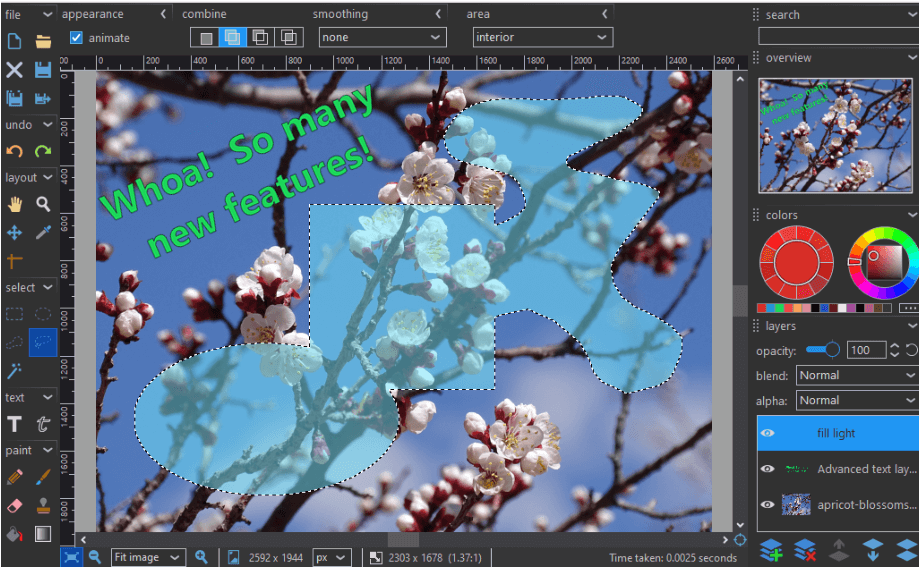
Best For: Portable, feature-packed editor for Windows
Review:
PhotoDemon is a portable Windows image editor—no installation required. It punches above its weight with layers, color correction, batch tools, and dozens of filters. Great for USB-stick workflows or users who want a powerful editor that doesn’t clutter their system.
Features:
-
Portable EXE, no installer
-
Layers, selections, and retouching tools
-
Batch processing and macros
-
Many creative filters and effects
-
Color adjustment and curves
Pros:
-
Lightweight yet powerful
-
Perfect for “on-the-go” editing
-
No system bloat
Cons:
-
Windows-only
-
Smaller community than GIMP/Paint.NET
Pricing: Free
5. RawTherapee
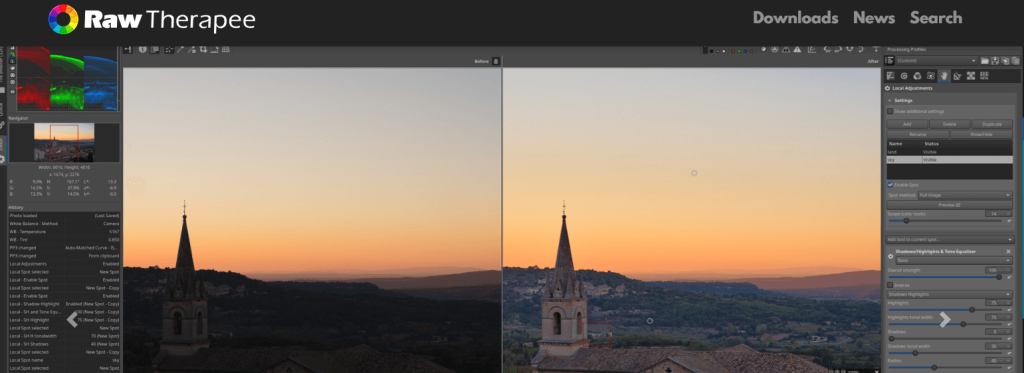
Best For: Professional-grade RAW image editing and photography workflow
Review:
RawTherapee is a powerful, free, and open-source RAW image editor designed for photographers who need precise control over their images. It provides advanced features for processing RAW files, including color correction, exposure adjustments, and noise reduction. With its non-destructive editing workflow, RawTherapee is perfect for photographers who want to get the most out of their raw image files without compromising on quality.
Features:
-
Advanced RAW editing tools
-
Non-destructive editing workflow
-
Color grading and exposure adjustment
-
Noise reduction and sharpening tools
-
Support for a wide range of RAW file formats
Pros:
-
Free and open-source
-
Powerful RAW processing tools
-
Non-destructive editing
-
Excellent for color grading and fine details
Cons:
-
Steep learning curve for beginners
-
Limited advanced retouching tools compared to Photoshop
Pricing:
Free (Open Source)
6. PixInsight LE
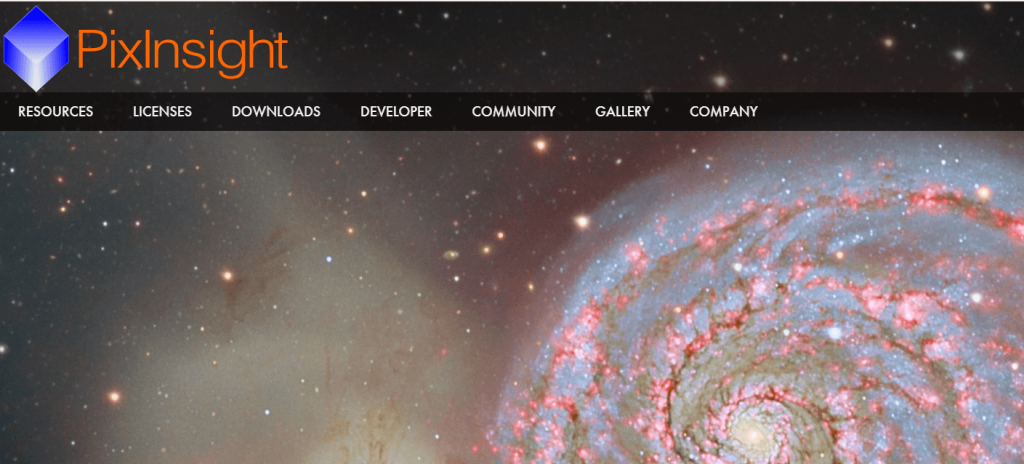
Best For: Entry-level astrophotography and scientific image processing
Review:
PixInsight is famous in the astrophotography community for deep-sky image processing. PixInsight LE (limited edition / free version where available) offers a subset of its tools for stacking, calibration, and enhancing astronomical images—far beyond Photoshop’s usual scope.
Features:
-
Image calibration and stacking
-
Background extraction and noise reduction
-
Advanced stretching and contrast tools
-
Specialized filters for astro data
Pros:
-
Tailored to astro images, not generic photos
-
Powerful noise and background handling
-
Great complement to Darktable/RawTherapee + GIMP
Cons:
-
Niche use case (overkill for everyday photos)
-
Interface is technical and non-intuitive
Pricing: Free / limited edition (full PixInsight is paid)
7. LunaPic (Free)
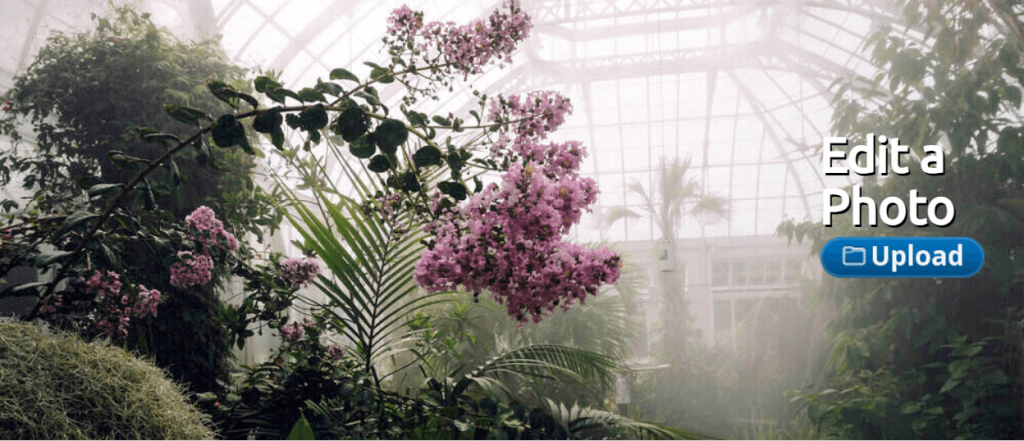
Best For: Simple yet powerful image editing with batch processing
Review:
LunaPic is a free online photo editor that offers a wide range of tools, from basic image manipulation to advanced photo effects. It supports batch processing, which makes it a great choice for editing multiple images at once. LunaPic is simple and powerful, making it a great alternative for users who need to make quick edits on the go.
Features:
-
Basic photo editing tools
-
Wide variety of photo effects and filters
-
Batch processing support
-
Animation and GIF creation tools
Pros:
-
Free and easy to use
-
Lots of photo effects and tools
-
Batch processing feature
Cons:
-
Interface can feel outdated
-
Limited advanced features for pro users
Pricing:
Free
8. CorelDRAW Graphics Suite
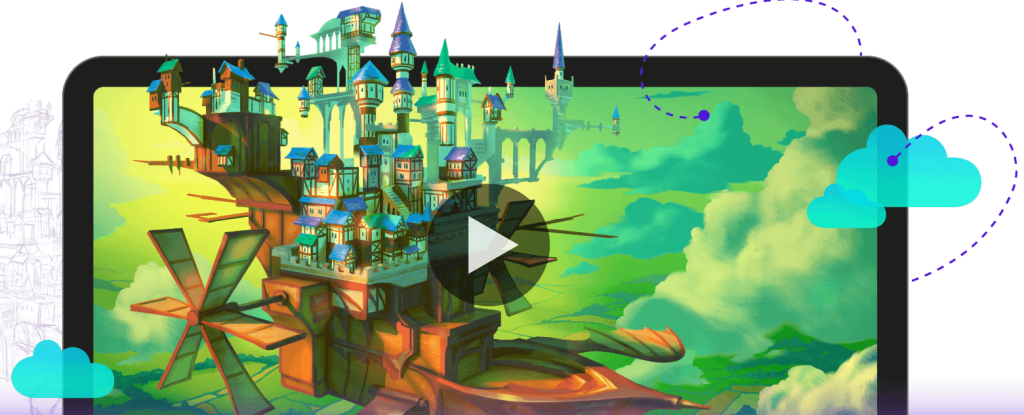
Best For: Vector illustration and professional layout design
Review:
CorelDRAW is a comprehensive graphic design suite that focuses on vector illustration, layout design, and image editing. It’s ideal for professional designers who need advanced features for graphic design and illustration. While it doesn’t directly replace Photoshop for photo editing, CorelDRAW excels in creating vector graphics and page layouts.
Features:
-
Vector illustration tools
-
Page layout and professional design tools
-
Photo editing features integrated with Corel PHOTO-PAINT
-
Collaboration and cloud storage options
Pros:
-
Ideal for professional graphic design
-
Extensive vector and layout tools
-
Excellent for logo creation, posters, and brochures
Cons:
-
Paid software, no free version
-
Can be expensive for casual users
Pricing:
$499 (one-time purchase)
9. Capture One
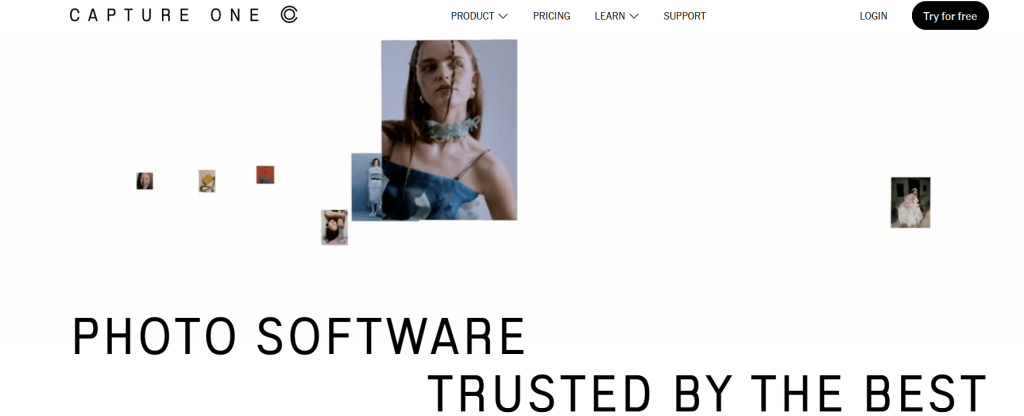
Best For: Professional photographers and RAW editing
Review:
Capture One is a RAW image processing tool designed for professional photographers. It provides powerful color grading, exposure adjustments, and tethering capabilities for studio shoots. While it’s not a direct Photoshop replacement, it’s perfect for users who focus on RAW editing and photo enhancement.
Features:
-
RAW editing and color grading
-
Tethering for studio photography
-
Layering and masking tools
-
Advanced organization and metadata management
Pros:
-
Best for professional photographers
-
Excellent color correction and RAW processing tools
-
Fast processing and non-destructive editing
Cons:
-
Paid software, no free version
-
High learning curve for beginners
Pricing:
$299 (one-time purchase)
10. Darktable
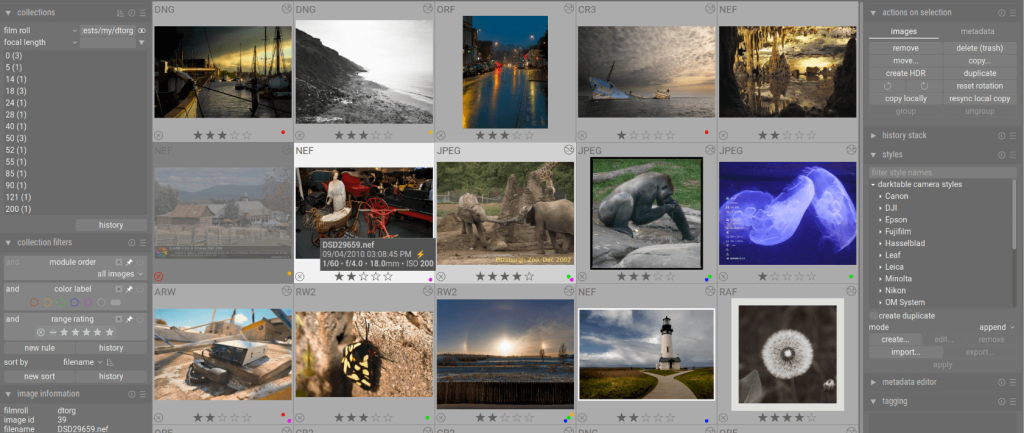
Best For: RAW photography workflow and non-destructive editing
Review:
Darktable is an open-source RAW processing tool designed for photographers. It provides advanced editing features like color correction, image retouching, and non-destructive workflows. Darktable is ideal for photographers who need advanced RAW editing capabilities but don’t want the high cost of Lightroom or Photoshop.
Features:
-
RAW image processing and editing
-
Non-destructive workflows
-
Color grading and exposure adjustments
-
Plug-ins and extensibility
Pros:
-
Free and open-source
-
Powerful RAW editing features
-
Great for photographers focused on image quality
Cons:
-
Not ideal for general photo editing
-
Steep learning curve
Pricing:
Free (Open Source)
How to Choose the Best Photoshop Alternative
When selecting the best free Photoshop alternative, consider the following:
- Features: Ensure the tool offers the features you need, such as layers, filters, and color correction.
- Ease of Use: If you’re a beginner, look for tools like Canva or Paint.NET that have a simpler interface. For advanced users, GIMP or Affinity Photo may be a better fit.
- Editing Type: If you focus on digital painting or illustration, Krita and CorelDRAW are excellent choices. For photography editing, Fotor and Photopea are great alternatives.
- Customization and Control: If you need complete control over your editing, GIMP and Darktable offer extensive customization and advanced features.
Conclusion
There are plenty of free Photoshop alternatives that provide powerful tools for image editing and graphic design. Whether you’re looking for a simple tool for quick edits or a feature-rich solution for professional-grade work, there is an option that suits your needs. Tools like GIMP, Krita, and Pixlr offer everything you need without the cost, while options like Affinity Photo and CorelDRAW provide professional-grade tools for one-time purchases.
What is the best free Photoshop alternative?
GIMP is the most feature-rich free alternative to Photoshop, offering advanced photo editing tools.
Can I use a free Photoshop alternative online?
Yes, tools like Photopea and Pixlr provide online Photoshop-like editing.
Which Photoshop alternative is best for digital painting?
Krita is the best free Photoshop alternative for digital painting and illustration.
Is there a good free alternative for professional photo editing?
GIMP and Darktable are great for professional photo editing and offer advanced features.
Can I use Affinity Photo as an alternative to Photoshop?
Yes, Affinity Photo offers professional-grade photo editing for a one-time fee.

